

MailAssure Guide
How to Access your Spam Inbox
- Open up outlook or your normal email application and search for no-reply@spam.intradatech.com It will be the FIRST email from this sender:
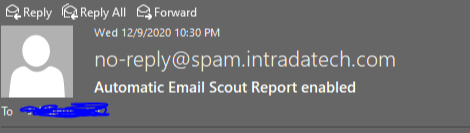
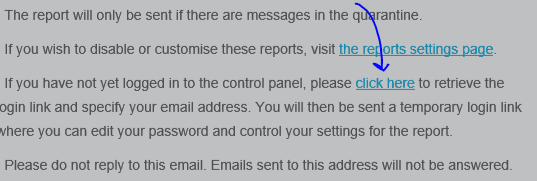
- At the bottom of the email, you will see a “Click Here” button to generate a login link for your email – alternatively, if you cannot find this email simply go to https://spam.intradatech.com/retrievelogin.php and follow the same steps below:
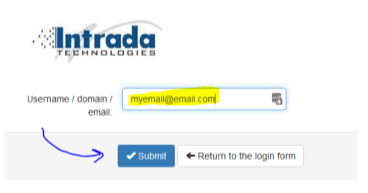
- Enter your email address and click submit
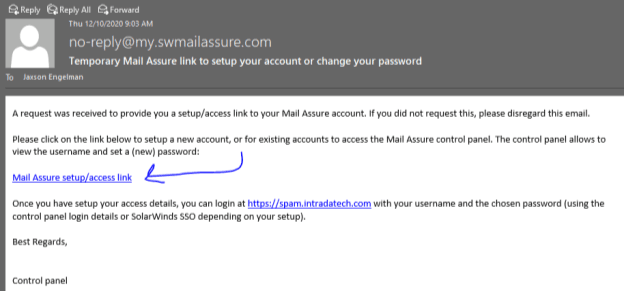
- This will generate a new email from no-reply@spam.intradatech.com and send it to your email with a password reset link – simply click this link:
- This will take you to a page that is asking for your password.
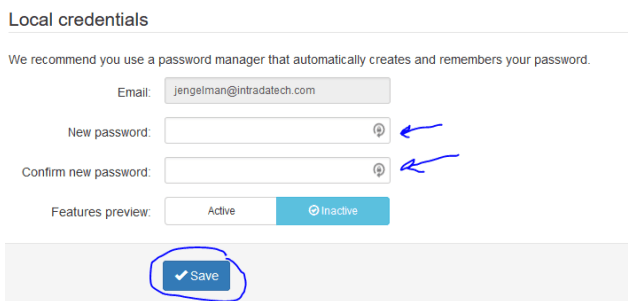 And then click on "Dashboard" on the left-hand side: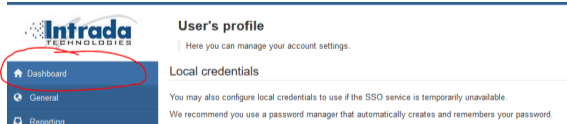
- At this point, you are now in your personal control panel or you can access it by navigating to https://spam.intradatech.com.:
- View Spam – Click the following button:
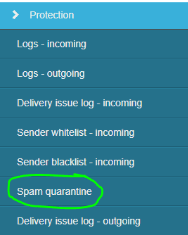
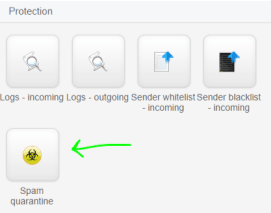 Or you may also view spam under Protection on the left-hand side after clicking "Spam Quarantine":
  Once you are in the spam inbox, the display will look like the following: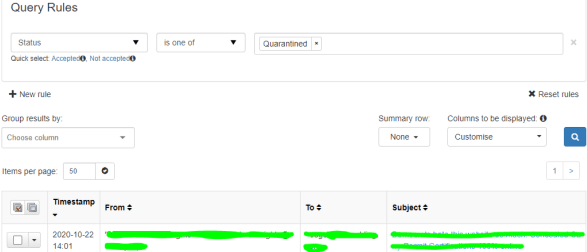
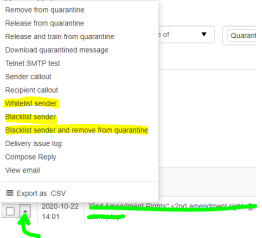
- From here, you will be able to Whitelist, Blacklist, and Blacklist sender and remove from quarantine by clicking the small arrow next to the selection box:
- View Spam – Click the following button:
Terms
Whitelist – Allows all mail from a selected sender
Blacklist – Deny all mail from a select sender
Remove from quarantine – This is effectively moving the spam to your trash bin – it deletes it
Remove and Train – This will delete the spam and teach MailAssure to recognize as bad
Release – This will deliver to your mailbox without training it
Release and Train – This will deliver to your mailbox and teach MailAssure to recognize as good
How Do I Change My Password?
- Open a Web Browser (Google Chrome, Microsoft Edge, FireFox, Safari, Etc. . .)
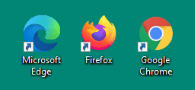
- Type in the following and hit “Enter”

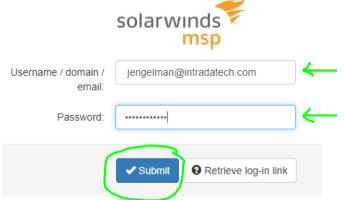
- At this point, you will enter your username – this should be your email address and your password (which will be included in the email you received this in) then click “Submit”.
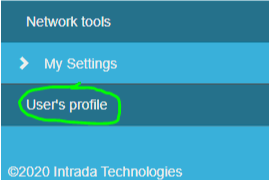
- On the left hand side you will see “My Settings”, underneath – you should see “User’s Profile"
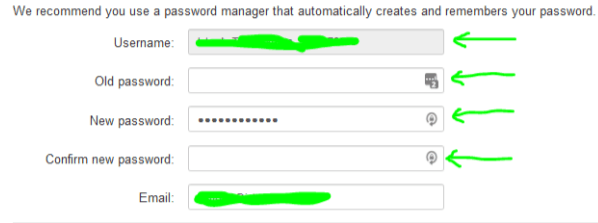
- Enter your username (email address), your old password, then your new password:
- Click “Save” and your password should be updated

How Do I Whitelist/Blacklist a Sender Manually?
- Sign into your MailAssure control panel
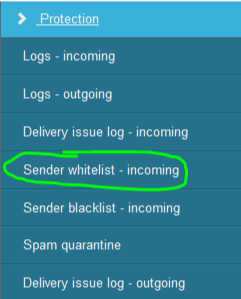
- On the left-hand side, under the “Protection” click on Sender Whitelist to whitelist or Sender Blacklist, if you’d like to deny a sender
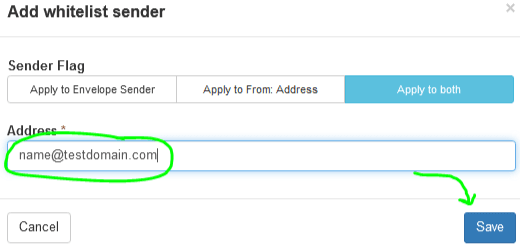
- Click on the “+ Add whitelist sender"
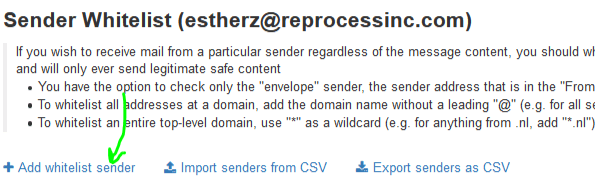
- Enter in the address / domain you would like to block and click “Save”
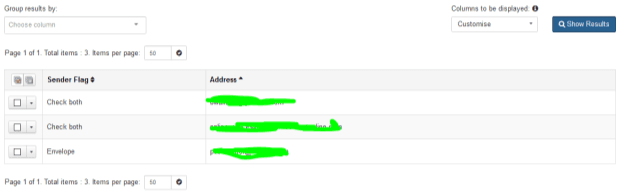
- On the right-hand side – click on “Show Results” – this should present a list of whitelisted addresses
Further, if you have any concerns, questions or issues – please reach out to us either by ticket and one of our technicians will be happy to reach out to you.
You can place a ticket here.
Download a copy of the PDF Here